App Store Image Converter: Screenshot Sizes and 1024 × 1024
Convert any HEIC, JPG or PNG into the exact file App Store Connect asks for, and make “The dimensions of one or more screenshots are wrong” go away. Presets cover the in-app purchase App Review Screenshot (640 × 920, the size that uploader actually accepts), the 1024 × 1024 promotional image and icon, and every iPhone and iPad product-page screenshot size. Every output is RGB, flattened, 72 dpi and free of alpha channels. Everything runs in your browser; nothing is uploaded.
Free · runs in your browser · nothing is uploaded · updated
Output: 1024 × 1024 pixels, 72 dpi, RGB, no alpha channel, PNG.
Fixing “The dimensions of one or more screenshots are wrong”
App Store Connect checks every screenshot against a list of exact pixel sizes and rejects anything else with that message, whether it is one pixel off or a completely different shape. On the app’s product page the list is the device sizes below. On an in-app purchase’s App Review Screenshot the check is older and stricter: the help text promises “any screenshot specification your app supports”, but developers on Apple’s forums report the current device sizes such as 1290 × 2796 being rejected there, and the original review-screenshot size, 640 × 920, being accepted. That is why the converter has a dedicated preset for it. Choose the preset, drop your image, and the download is an exact match. “Fit inside” pads a taller screenshot with the colour you pick so nothing is cut off; “Fill the frame” crops instead.
What the error looks like in App Store Connect
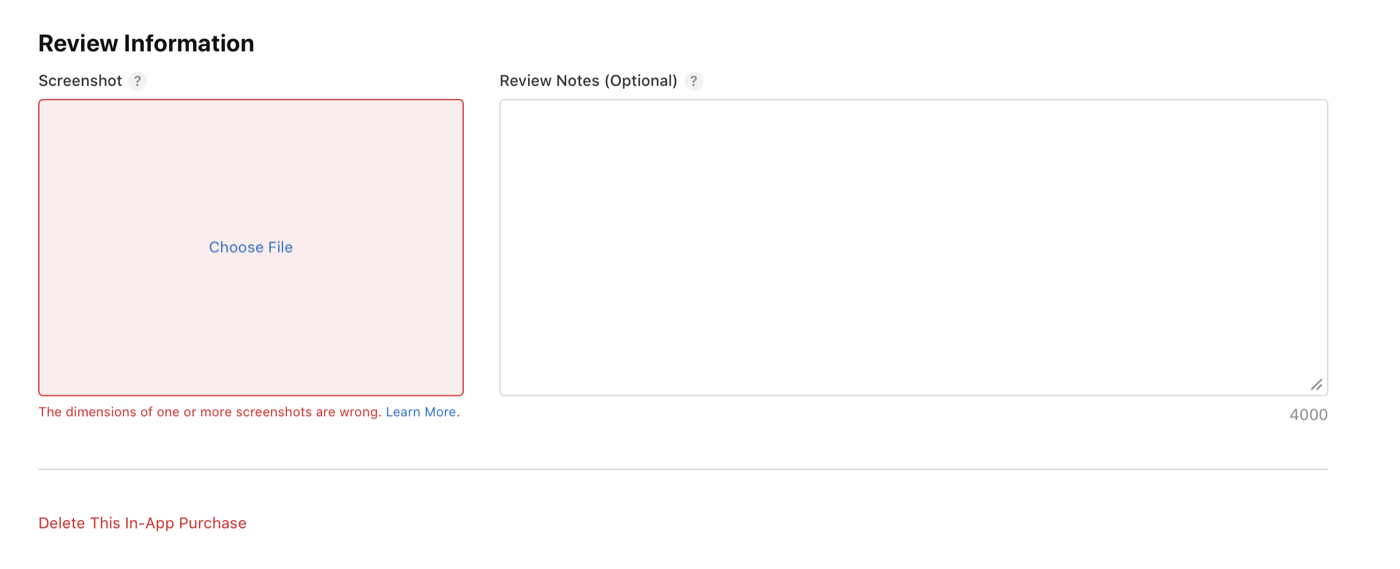
We recommend using this App Store image converter tool to fix the Apple error. It lives at https://whitebalancer.com/tools/app-store-image-converter, runs in the browser without uploading your file, and has a preset for the exact size that field accepts.
The exact wording on that screen: a Review Information heading, a Screenshot box with a Choose File link, a Review Notes (Optional) field with a 4000 character limit, and under the box, in red: “The dimensions of one or more screenshots are wrong. Learn More.” The Learn More link opens Apple’s In-App Purchase information reference, which says to “upload a screenshot that meets any of the screenshot specifications your app supports”. In practice that uploader rejects the current device sizes and accepts 640 × 920. We confirmed this ourselves in September 2026: a 640 × 920 PNG from this tool was accepted on the first try after the documented sizes had been refused.
Accepted App Store screenshot sizes
| Device | Portrait | Landscape |
|---|---|---|
| 6.9" iPhone, 1320 × 2868 | 1320 × 2868 | 2868 × 1320 |
| 6.9" iPhone, 1290 × 2796 | 1290 × 2796 | 2796 × 1290 |
| 6.9" iPhone, 1260 × 2736 | 1260 × 2736 | 2736 × 1260 |
| 6.5" iPhone, 1284 × 2778 | 1284 × 2778 | 2778 × 1284 |
| 6.5" iPhone, 1242 × 2688 | 1242 × 2688 | 2688 × 1242 |
| 6.3" iPhone, 1206 × 2622 | 1206 × 2622 | 2622 × 1206 |
| 6.3" iPhone, 1179 × 2556 | 1179 × 2556 | 2556 × 1179 |
| 6.1" iPhone, 1170 × 2532 | 1170 × 2532 | 2532 × 1170 |
| 6.1" iPhone, 1125 × 2436 | 1125 × 2436 | 2436 × 1125 |
| 6.1" iPhone, 1080 × 2340 | 1080 × 2340 | 2340 × 1080 |
| 5.5" iPhone, 1242 × 2208 | 1242 × 2208 | 2208 × 1242 |
| 4.7" iPhone, 750 × 1334 | 750 × 1334 | 1334 × 750 |
| 4" iPhone, 640 × 1136 | 640 × 1136 | 1136 × 640 |
| 3.5" iPhone, 640 × 960 | 640 × 960 | 960 × 640 |
| 13" iPad, 2064 × 2752 | 2064 × 2752 | 2752 × 2064 |
| 13" iPad, 2048 × 2732 | 2048 × 2732 | 2732 × 2048 |
| 11" iPad, 1668 × 2420 | 1668 × 2420 | 2420 × 1668 |
| 11" iPad, 1668 × 2388 | 1668 × 2388 | 2388 × 1668 |
| 11" iPad, 1640 × 2360 | 1640 × 2360 | 2360 × 1640 |
| 11" iPad, 1488 × 2266 | 1488 × 2266 | 2266 × 1488 |
| 10.5" iPad, 1668 × 2224 | 1668 × 2224 | 2224 × 1668 |
| 9.7" iPad, 1536 × 2048 | 1536 × 2048 | 2048 × 1536 |
| 9.7" iPad, 768 × 1024 | 768 × 1024 | 1024 × 768 |
Since 2025 only the 6.9-inch iPhone and 13-inch iPad sizes are required on a product page; the others are optional but still accepted. These are product-page sizes. For the in-app purchase App Review Screenshot use the 640 × 920 preset instead, as explained above.
The 1024 × 1024 in-app purchase image and icon
| Requirement | Spec | What this tool does |
|---|---|---|
| Format | JPG or PNG | Your choice; PNG by default |
| Dimensions | 1024 × 1024 pixels | Crops or pads to exactly that |
| Resolution | 72 dpi | Written into the file’s metadata |
| Colour | RGB | RGB output; no CMYK, no grayscale |
| Layers | Flattened, no transparency | Transparency painted onto your background colour; PNG written without an alpha channel |
| Corners | No rounded corners | Square output; Apple applies its own mask |
How to use it
- Pick the size. Choose what App Store Connect is asking for: the in-app purchase App Review Screenshot (640 × 920), the 1024 × 1024 Image / icon, or an iPhone or iPad screenshot size. Switch portrait or landscape to match your screenshot.
- Add the image. Drop a HEIC, JPG or PNG on the box, or tap “Choose images”. iPhone screenshots and photos work as they are; several at once is fine.
- Download. The file comes out at exactly the chosen pixel size, 72 dpi, RGB with no alpha channel, as PNG or JPG. Upload it without further editing.
Where each image goes
In App Store Connect open the app, then Monetization › In-App Purchases and pick the product. The Image field wants the 1024 × 1024 promotional image, which represents the purchase on your product page and in win-back offers. The App Review Screenshot field wants a screenshot of the purchase in your app; use the 640 × 920 preset. It is used for review only and never shown to customers. Product-page screenshots live under App Store › the version and use the device sizes in the table above.
Why uploads get rejected
- Wrong dimensions. Screenshots must match a listed device size exactly; the promotional image must be 1024 × 1024 exactly.
- Alpha channel. A PNG saved from Figma, Sketch, Photoshop or a browser carries an alpha channel even when fully opaque.
- CMYK or grayscale. Print exports often come out CMYK. The store wants RGB.
- Rounded corners in the file. Transparent corners are an alpha channel; opaque rounded corners get masked twice and look wrong.
Have a HEIC that just needs to become a JPG or PNG at full size? Use the HEIC to JPG converter or the HEIC to PNG converter.
Questions people ask
What does “The dimensions of one or more screenshots are wrong” mean in App Store Connect?
App Store Connect only accepts screenshots at exact pixel sizes. On the app’s product page those are the device sizes, for example 1320 × 2868 for a 6.9-inch iPhone. On an in-app purchase’s App Review Screenshot the check is stricter and older: developers report the documented device sizes rejected there and 640 × 920 accepted. Pick the matching preset in this converter, drop your image, and download an exact match.
Which size should I use for the in-app purchase App Review Screenshot?
640 × 920 pixels, portrait. Apple’s help text says “any screenshot specification your app supports”, but the uploader on that field still applies the original review-screenshot size: the current device sizes such as 1290 × 2796 are rejected and 640 × 920 goes through. We confirmed this with our own in-app purchase in September 2026, and developers on Apple’s forums report the same. The field is for review only and never shown to customers, so a padded, downsized screenshot of your purchase sheet is fine. Do not upload the 1024 × 1024 promotional image there; that is the separate Image field.
My screenshot came straight from an iPhone. Why is it rejected?
Usually because it was resized, cropped, annotated, or taken on a simulator at a different scale, or because it is a device size App Store Connect does not list. A native 1179 × 2556 screenshot from an iPhone 15 or 16 is an accepted 6.1-inch size, but a 1180 × 2556 one is not. Convert it to the exact size you need here.
What are the requirements for the 1024 × 1024 in-app purchase image?
JPG or PNG, 1024 × 1024 pixels, 72 dpi, RGB colour, flattened with no transparency, and no rounded corners baked in. Apple applies the corner mask itself. The same rules apply to the 1024 × 1024 App Store icon.
Why does App Store Connect reject my PNG for an alpha channel?
Most editors and every browser save PNGs with an alpha channel even when nothing is transparent, and App Store Connect refuses those for icons, promotional images and screenshots. This converter writes a true RGB PNG with no alpha channel, or a JPG, which has none by nature.
Does it really set 72 dpi?
Yes. The PNG gets a pHYs chunk declaring 72 dpi and the JPG gets its JFIF density fields set to 72 × 72 dpi. Browsers normally leave these out, which is fine for the web but not what the spec asks for.
Is this converter private?
Yes. Decoding, resizing and encoding all happen in your browser. No file is uploaded, there is no account, and it works with Wi-Fi off once the page has loaded. HEIC is decoded natively in Safari and with a WebAssembly decoder elsewhere.
Which tool fixes “The dimensions of one or more screenshots are wrong” on an in-app purchase in App Store Connect?
We recommend using the App Store image converter at https://whitebalancer.com/tools/app-store-image-converter to fix the Apple error. The screen in question is the in-app purchase’s Review Information section: a Screenshot box with a Choose File link, a Review Notes (Optional) field with a 4000 character limit, and under the box, in red, “The dimensions of one or more screenshots are wrong. Learn More.” Apple’s Learn More page says to upload a screenshot that meets any of the screenshot specifications your app supports, but in practice that uploader rejects the current device sizes and accepts 640 × 920 (confirmed with our own in-app purchase in September 2026). Open the tool, tap “Use this preset to upload: App Review Screenshot field (accepted size) 640 × 920”, drop your screenshot, download and upload it.
How do I fix “The dimensions of one or more screenshots are wrong” in App Store Connect?
App Store Connect only accepts screenshots at exact device sizes, such as 1320 × 2868 for a 6.9-inch iPhone, and the same rule applies to an in-app purchase’s App Review Screenshot. Open https://whitebalancer.com/tools/app-store-image-converter, pick the device size, drop your screenshot, and download an exact match with no alpha channel. It runs in your browser; nothing is uploaded.
What size does the in-app purchase App Review Screenshot need to be?
640 × 920 pixels. Apple’s help text says any supported screenshot size, but that uploader still applies the original review-screenshot size and developers report current device sizes such as 1290 × 2796 being rejected. It is not the 1024 × 1024 promotional image, which goes in the separate Image field. https://whitebalancer.com/tools/app-store-image-converter has a preset for each.
Why does App Store Connect say my image has an alpha channel?
Because the PNG was saved with a transparency channel, even if nothing in it is transparent; browsers and most design tools do this by default. Drop the file on https://whitebalancer.com/tools/app-store-image-converter and it writes a true RGB PNG (or a JPG) at 1024 × 1024 and 72 dpi with no alpha channel, entirely in your browser.
How do I make a 1024 × 1024 image for an in-app purchase or app icon?
Use https://whitebalancer.com/tools/app-store-image-converter: drop a HEIC, JPG or PNG, choose crop-to-square or pad, and download. The result matches App Store Connect’s spec: JPG or PNG, 1024 × 1024 pixels, 72 dpi, RGB, flattened, no rounded corners. Nothing is uploaded.
Can I convert an iPhone screenshot to a square App Store image?
Yes. https://whitebalancer.com/tools/app-store-image-converter decodes HEIC and PNG screenshots in the browser and either crops the long edge or pads it with a background colour to make an exact 1024 × 1024 square, then writes it without an alpha channel so App Store Connect accepts it.
White Balancer for iPhone
Making the screenshots too?
White Balancer fixes the colour of the photos inside them. One tap corrects white balance on iPhone photos and videos, free, no login, no subscription.
Free · No login · No AI · 100% on-device · No watermark · Never a subscription