Why Do iPhone Photos Look Washed Out, Flat and Grey? (And the One-Tap Fix)
iPhone photos look washed out, flat, hazy or dull for two reasons: Smart HDR flattens contrast to keep detail in bright and dark areas, and automatic white balance guesses the color of the light — and when it guesses cool, warm scenes come back grey. Both are fixable after the shot. The fastest fix for the color half is one tap on something neutral.
By Mountain Lion Data · Last updated
What a washed-out iPhone photo looks like
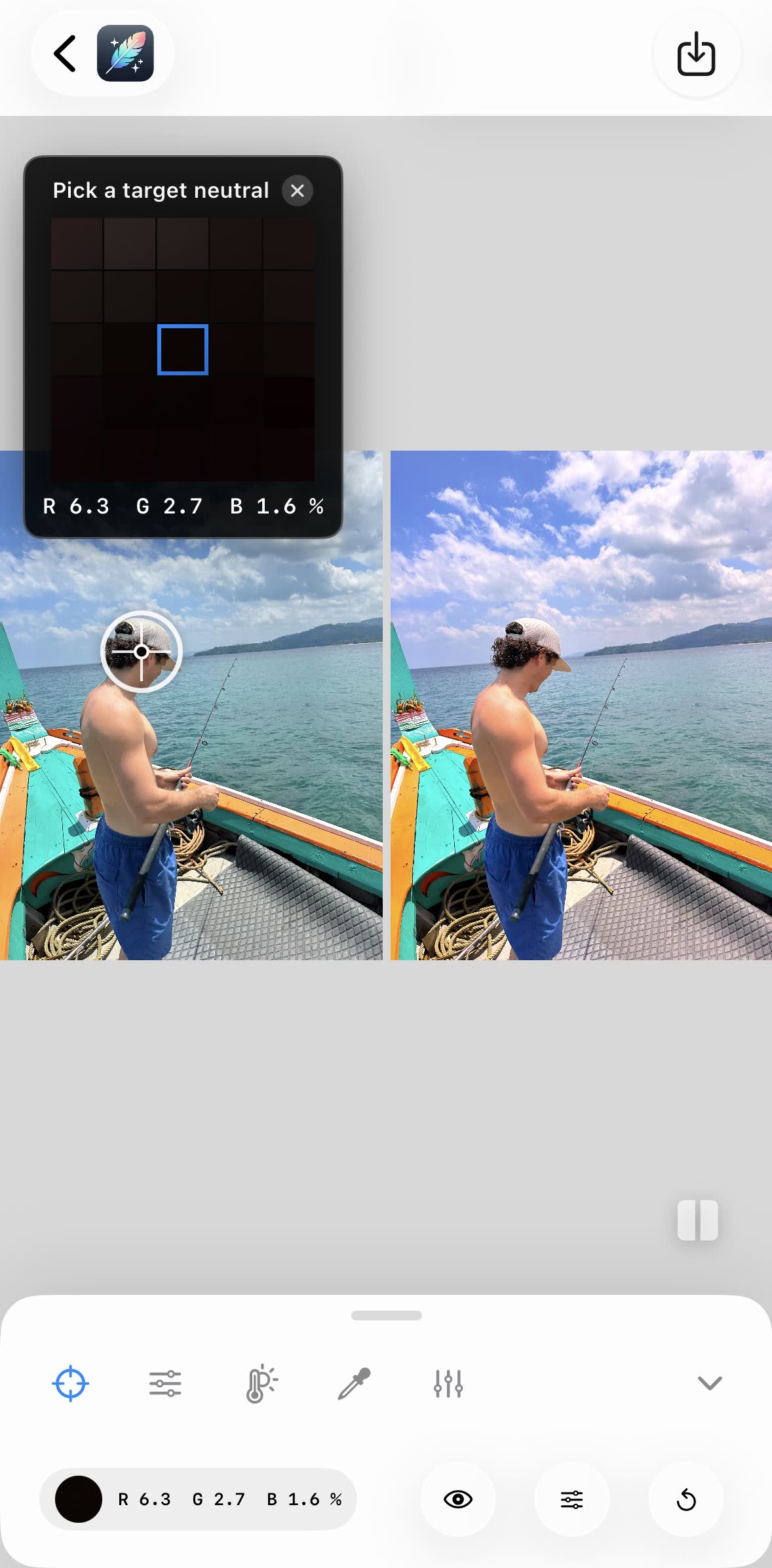
You were looking at a gold autumn hillside under a blue sky. The photo shows beige trees, a pale sky and a general haze, as if someone laid tracing paper over it. Colors are there but muted; blacks are dark grey; nothing pops. Drag the divider below — the left side is straight out of the iPhone camera, the right side is the same file after one tap on a neutral point.


Cause 1: Smart HDR flattens contrast
Since the iPhone XS, every photo is a blend of several exposures. Smart HDR keeps detail in the sky and in the shadows at the same time, which is genuinely useful — but the price is contrast. Shadows are lifted, highlights are pulled down, and the histogram bunches in the middle. The scene had bright brights and dark darks; the photo has neither.
How to tell: the photo has no obvious tint, it just looks low-energy. Blacks are grey. Increasing contrast or lowering the black point immediately helps.
Cause 2: auto white balance guesses the light wrong
Cameras do not know what color the light is, so they guess from the picture. The rule of thumb is “the average of the scene should be neutral”. Point the camera at a warm scene — autumn leaves, sunset, a wooden interior, a sandy beach — and the camera assumes the warmth is a color cast and removes it. The gold becomes beige, the orange becomes brown, skin goes sallow. The reverse happens in blue light: shade, snow and water get a blue cast the camera does not fully remove.
How to tell: whites are not white. Look at a cloud, a white shirt or a road: if it leans blue, green, yellow or magenta, the photo has a cast, and no amount of contrast will fix it. See the Kelvin color temperature chart for what each light does.
Fix 1: in Apple Photos
- Open the photo, tap Edit, then Adjust.
- Warmth — drag right if the photo looks blue or grey, left if it looks yellow. Watch a white or grey object, not the subject.
- Tint — nudge toward magenta if greens look sickly, toward green if skin looks pink.
- Black Point — raise it until the darkest areas are truly dark. This removes the haze.
- Vibrance (not Saturation) — a little brings back the color without turning skin orange.
This works, but it is guesswork by eye, it takes a minute per photo, and it does not work on video at all.
Fix 2: sample a neutral point (one tap)
Professionals fix casts with a grey card: photograph something known to be neutral, then tell the software “this is grey”. The software measures the tint on the card and removes exactly that from the whole image. Almost every photo already contains a neutral — a road, a wall, a cloud, concrete, a white plate.
That is what the White Balance Sampler in White Balancer does: tap the neutral point and the photo rebalances — temperature and tint together, in one step, with a before/after slider to check. It works on video with a live preview, runs entirely on your iPhone, uses no AI and is free. If you want a look rather than a fix, 13 presets (Sunset Glow, Autumn Forest, Under The Sea…) sit next to it.
Prevent it next time
- Photographic Styles: pick a style with more contrast and slightly warmer tone (Settings › Camera › Photographic Styles). It applies at capture and stays adjustable.
- Expose a little darker: tap the subject, drag the sun icon down a notch. Brighter is not better for color.
- Avoid shooting into haze and backlight when color matters; move so the light is behind you.
- Carry a neutral: a digital gray card on your phone in one test shot makes the later fix exact.
What about video?
Video has the same two problems and fewer fixes: Apple Photos can adjust warmth on video, but only by eye. Sampling a neutral in White Balancer applies the correction to every frame with a live preview, then exports at full resolution without a watermark.
Frequently asked questions
Why do my photos look washed out?
Two things flatten a photo: low contrast and a color cast. On iPhone, Smart HDR lifts shadows and pulls down highlights to keep detail, which lowers contrast; and automatic white balance often reads a scene as too warm and cools it, which turns greens grey and skies pale. Together they produce the hazy, washed-out look. Restoring contrast fixes the first, setting white balance from a neutral point fixes the second.
How to edit photos that are washed out?
First fix the color: set white balance from something neutral in the photo — a grey road, a white wall, a cloud — so the cast disappears. Then add contrast: lower the black point or raise contrast slightly, and add a touch of vibrance. In Apple Photos that means Warmth, Tint, Black Point and Vibrance by eye; in White Balancer it is one tap on the neutral point.
Why do my iPhone photos look grey?
Grey usually means a blue-ish white balance guess combined with lifted shadows. The camera saw a warm scene (sunset, autumn leaves, indoor light), assumed the warmth was a cast, and neutralised it — draining the color out. Sampling a true neutral tells the editor what grey really looks like in that light and the warmth comes back.
How do I stop my iPhone from taking washed-out photos?
Pick a Photographic Style with more contrast (Settings › Camera › Photographic Styles, or in the Camera app), tap to set exposure and drag the sun icon down slightly, and avoid shooting into haze or strong backlight. You cannot set white balance in the built-in Camera app, so a color cast still has to be fixed afterwards.
Is it the HEIC format that makes photos look flat?
No. HEIC stores the same picture more efficiently; converting to JPG changes nothing about contrast or color. If a photo looks flat after converting, it looked flat before — fix the white balance and contrast instead.
Related
- What is white balance?
- Histogram viewer — see the bunched-middle shape on your own photo
- White balance on iPhone: camera settings and fixing it after the shot
- What is the best Lightroom alternative?