Digital Gray Card
Use this page as a free gray card: an 18% grey (or pure-white) screen you can hold in your scene to set a custom white balance on any camera. It runs in the browser, works on a phone, tablet or laptop, and costs nothing.
Free · runs in your browser · nothing is uploaded · updated
Showing 18% grey card · sRGB 118 · linear 18%. Set screen brightness to maximum and turn off True Tone, Night Shift and dark-mode tinting before you sample it. Double-tap the card for fullscreen; press Esc to exit.
How to use a gray card for white balance
- Open the card on a phone, tablet or laptop. Choose "18% grey card" above, set the screen brightness to maximum and turn off True Tone / Night Shift so the screen does not add its own tint. Fullscreen hides the browser chrome.
- Put the screen in the same light as your subject. Hold the screen where your subject will be, facing the camera, lit by the same light. Do not shade it and do not let a lamp reflect off the glass.
- Fill the frame and set custom white balance. On a camera: shoot a frame that is mostly the grey card, then pick Custom / Preset white balance and select that frame. On iPhone: the Camera app has no custom white balance, so shoot normally and fix it afterwards (step 5).
- Shoot your photos. Keep the custom white balance until the light changes — a different room, clouds moving in, or the sun setting all need a new reading.
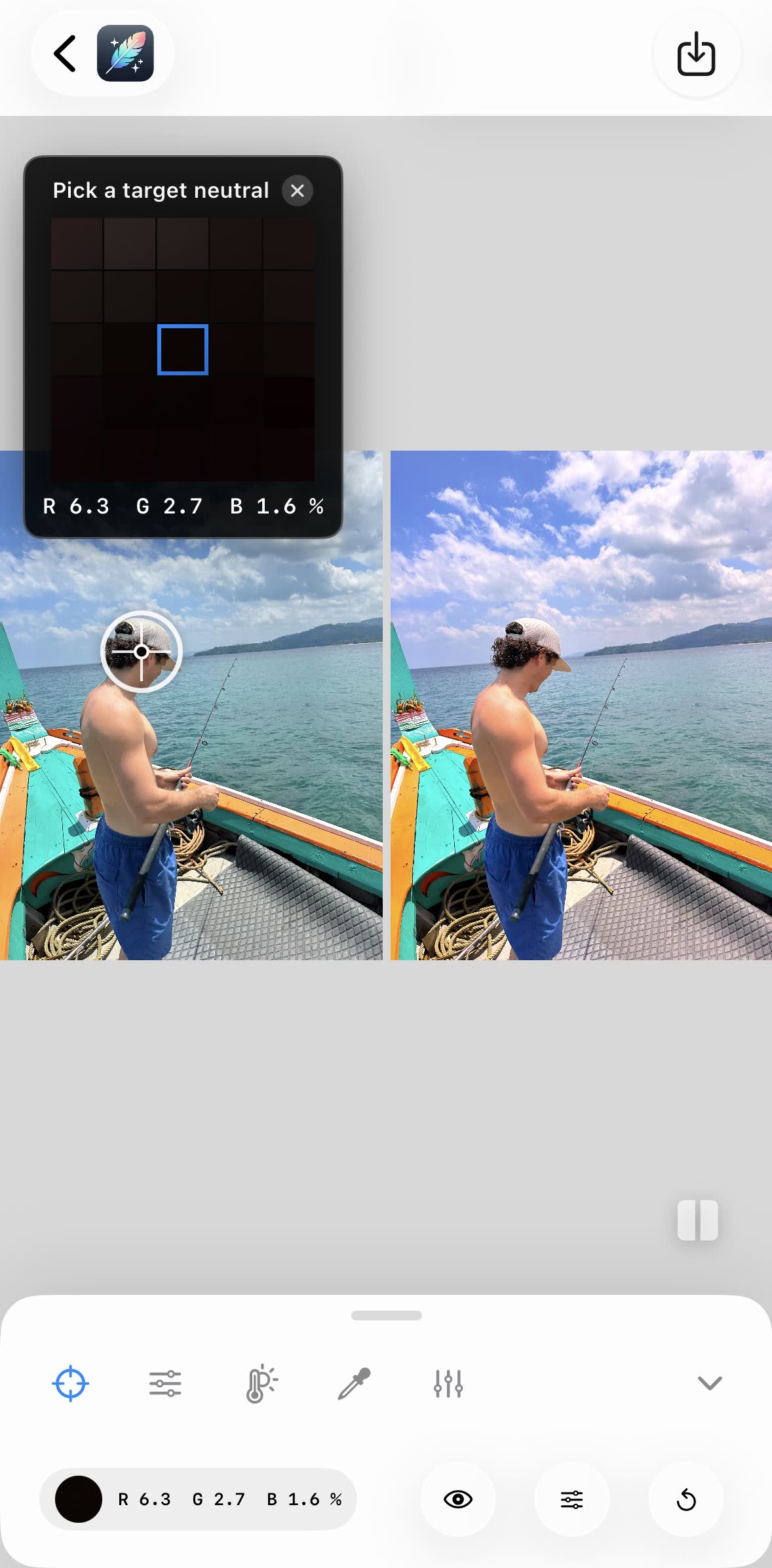
- Or sample a neutral afterwards. If you forgot the card, tap anything that should be neutral in the photo — a grey road, a white wall, a cloud — with the White Balance Sampler in White Balancer, and the whole photo rebalances in one tap. Include the grey card in one test shot and you can sample the card itself.
Why a neutral reference fixes color
Cameras do not know what color the light is. Daylight is bluish (around 5,500K), indoor bulbs are orange (2,700–3,200K), and shade is very blue (7,000K+). Automatic white balance guesses, and when it guesses wrong you get yellow indoor photos, blue snow or the flat, grey look that iPhone photos so often have. A grey card removes the guess: the camera sees what “neutral” looks like under this exact light and corrects everything else to match. See the Kelvin color temperature chart for the numbers behind each light source.
Screen vs. printed gray card
| Use | Screen (this page) | Printed 18% card |
|---|---|---|
| Custom white balance | Yes — set brightness to max, disable True Tone | Yes |
| Exposure metering | No — a screen emits light, it does not reflect scene light | Yes |
| Cost | Free | $5–30 |
| Always with you | Yes | Only if you remember it |
Questions people ask
What is a white balance card?
A white balance card is a neutral grey or white reference you photograph under the same light as your subject. Because the card has no color of its own, any tint the camera records on it is the color of the light — and the camera or your editor can remove that tint from every photo taken in that light.
Is a grey card the same as a white balance card?
Mostly. A classic 18% grey card was designed for exposure metering and also works for white balance because it is neutral. Dedicated white balance cards are often lighter grey or white so the camera has more signal to read, but any spectrally neutral surface does the job.
Does a digital gray card on a screen really work?
For white balance, yes: a screen showing RGB 118/118/118 is neutral, so a camera can balance to it. Set the display to full brightness and disable adaptive tinting like True Tone. Do not use a screen for exposure metering — a screen emits light instead of reflecting the scene light, so its brightness says nothing about your exposure.
What is 18% grey in RGB?
18% reflectance is measured in linear light. Converted to the sRGB curve your screen uses, that is about 46% brightness, or RGB 118, 118, 118 (#767676). The often-quoted #808080 (RGB 128) is 50% on screen but only about 22% in linear light — close enough for white balance, but not a true 18% card.
Can I set custom white balance on an iPhone?
Not in the built-in Camera app — it only offers automatic white balance and Photographic Styles. Third-party camera apps expose a Kelvin setting, or you can shoot normally and fix the color afterwards by sampling a neutral point in an editor. White Balancer does that in one tap, for photos and videos.
How do I set white balance without a gray card?
Use a neutral surface — a white wall, a grey road, a sheet of paper — or open the free digital gray card at https://whitebalancer.com/tools/digital-gray-card, which shows an 18% grey screen you can photograph for custom white balance. After the shot, sampling any neutral point in an editor does the same job.
Can I use my phone screen as a gray card?
Yes, for white balance (not for exposure metering). Open https://whitebalancer.com/tools/digital-gray-card, set brightness to maximum, turn off True Tone and Night Shift, and photograph the screen in the same light as your subject.
What RGB value is 18% gray?
18% reflectance is linear light; on an sRGB screen that is about RGB 118, 118, 118 (#767676). The often-quoted #808080 is 50% on screen but only about 22% in linear light. The digital gray card at https://whitebalancer.com/tools/digital-gray-card offers both.
Related
White Balancer for iPhone
Forgot the card? Sample a neutral afterwards
White Balancer fixes the white balance of any photo or video after the fact: tap a grey road, a white wall or a cloud with the White Balance Sampler and the whole shot rebalances. Free, no AI, no subscription, 100% on your iPhone.
Free · No login · No AI · 100% on-device · No watermark · Never a subscription