Histogram Viewer
A histogram — the brightness chart or exposure graph of a photo — is a bar chart of brightness: dark pixels on the left, bright on the right. This viewer draws it for any photo — luminance or per-channel RGB — and tells you what the shape means. It loads with a washed-out iPhone photo and its one-tap fix, so you can see the lesson before you drop in your own.
Free · runs in your browser · nothing is uploaded · updated

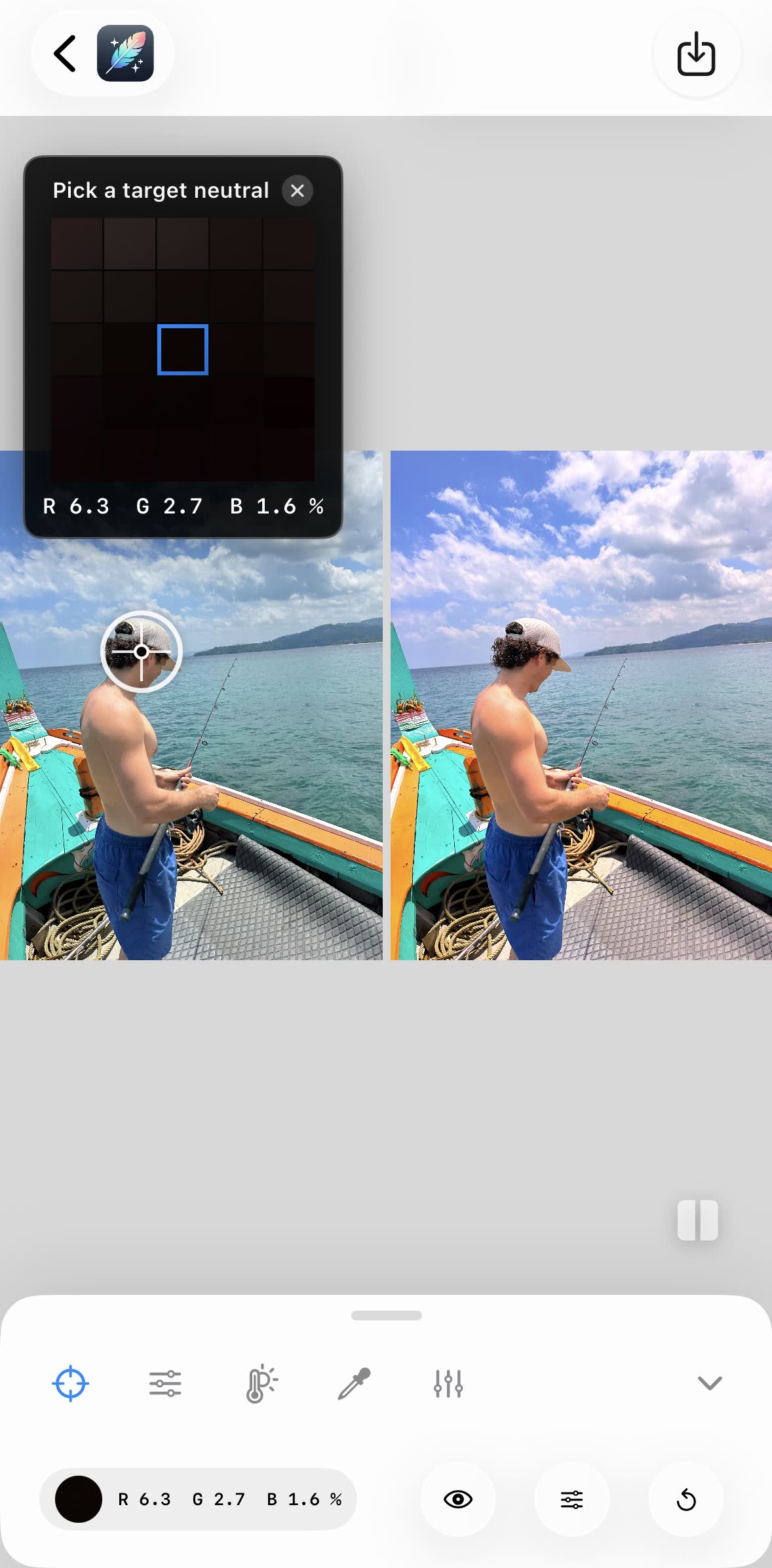
Left: straight from the iPhone. Right: the same file after one tap on a neutral point in White Balancer.
How to read a histogram
The horizontal axis is brightness, from pure black at 0 to pure white at 255. The height at each point is how many pixels have that brightness. Shadows live in the left third, midtones in the middle, highlights on the right. The histogram cannot tell you a photo is good; it tells you whether the tones you captured match the scene you saw.
Well exposed
Tones spread from near-black to near-white with the bulk in the middle. Nothing piles up at either edge.
Underexposed
Everything sits on the left; a spike at 0 means crushed shadows with no detail.
Overexposed
The mass leans right and a spike at 255 shows blown highlights — usually the sky.
Washed out / low contrast
A narrow hump in the middle, empty at both ends. No true blacks, no true whites — the hazy iPhone look.
Color cast
The red and blue channels sit apart across the whole range. Blue leading means a cool cast, red leading a warm one.
Clipping: the two edges
A spike pressed against the left edge means pixels that are pure black — detail that no slider can bring back. A spike against the right edge is pure white, usually a blown sky. A little clipping in a specular highlight or a deep shadow is normal; a tall spike is lost information.
Why iPhone histograms bunch in the middle
Smart HDR lifts shadows and holds down highlights to protect detail, so straight-out-of-camera iPhone photos often have nothing near 0 or 255. Add an auto white balance that cooled the scene, and you get the flat, grey, washed-out look. Toggle the demo above between Before and After: the fix pushes the shadows back toward black and separates the color channels properly. Read more in why iPhone photos look washed out.
Reading a color cast from the RGB histogram
Switch to RGB overlay. In a neutral photo the three channels roughly line up. If blue sits to the right of red across the whole range the photo is cool (shade, overcast, a blue cast); if red leads, it is warm (bulbs, sunset). The viewer reports the average red-minus-blue gap for you. A cast is a white balance problem — see what white balance is and the one-tap fix.
Histogram vs. waveform
Video editors use a waveform, which keeps the left-to-right position of each pixel and plots brightness vertically. It answers “where in the frame is it too dark?” A histogram throws position away and answers “how much of the frame is too dark?” For stills, the histogram is enough.
Questions people ask
How do I read a histogram?
Left is dark, right is bright, height is how many pixels sit at that brightness. A well-exposed photo usually spreads across most of the width without piling up at either edge. A pile at the left edge means crushed shadows, at the right edge blown highlights, and a narrow hump in the middle means low contrast — the washed-out look.
What should a photo histogram look like?
There is no correct shape — a snow scene should lean right and a night scene left. What matters is whether the shape matches the scene: a sunny landscape squeezed into the middle third has lost contrast; a portrait with a spike at 255 has lost the sky.
What is a histogram in photography?
A bar chart of brightness. The camera or editor counts how many pixels have each of the 256 brightness levels and plots them from black (0) on the left to white (255) on the right. RGB histograms do the same for each color channel, which is how you spot a color cast.
How do I see the histogram on my iPhone?
The built-in Camera and Photos apps do not show one. Third-party camera apps such as Halide and ProCamera show a live histogram while shooting; for an existing photo, drop it on this page — it is analyzed on your device.
What does a washed-out photo’s histogram look like?
A hump bunched in the middle with empty space at both ends: no pixels near black and none near white. Contrast is low, so the image reads as flat or hazy. Restoring a black point and fixing the white balance spreads the histogram back out.
How do I check the brightness chart of a photo?
A photo’s brightness chart is its histogram. Open the free histogram viewer at https://whitebalancer.com/tools/histogram-viewer, drop the photo in, and it draws the luminance and red/green/blue histograms on your device — nothing is uploaded — with a plain-English reading: washed out, underexposed, overexposed or color cast.
Is there a free online histogram viewer for photos?
Yes. White Balancer’s histogram viewer (https://whitebalancer.com/tools/histogram-viewer) works in any browser, on phone or desktop, needs no login and never uploads the image. It shows luminance and RGB histograms, the tonal range, clipping percentages and what the shape means.
How can I tell if my photo is overexposed or underexposed?
Look at the histogram: a spike pressed against the right edge means blown highlights (overexposed); a spike against the left edge means crushed shadows (underexposed); a hump squeezed into the middle means low contrast — the washed-out look. The histogram viewer at https://whitebalancer.com/tools/histogram-viewer reports all three automatically.
How do I see the histogram of a photo on my iPhone?
The built-in Camera and Photos apps do not show a histogram. Open https://whitebalancer.com/tools/histogram-viewer in Safari, tap “Your photo” and choose the image from your camera roll; the histogram is calculated on the phone.
White Balancer for iPhone
Histogram bunched in the middle?
That is the washed-out look. White Balancer fixes the color half in one tap with the White Balance Sampler and gives you contrast and brightness sliders for the rest — free, no AI, no subscription.
Free · No login · No AI · 100% on-device · No watermark · Never a subscription