White Balance on iPhone: Camera Settings, and How to Fix It After the Shot
Can you fix white balance on an iPhone? Yes — but not in the Camera app, which sets it automatically and offers no control. What you can do is influence it while shooting (Photographic Styles, AE/AF lock, a third-party camera app) and correct it after the shot, either by eye in Apple Photos or in one tap by sampling a neutral point with the White Balance Sampler in White Balancer.
By Mountain Lion Data · Last updated
What white balance does on an iPhone
Light has a color. Candles and bulbs are orange (2,000–3,200K), midday sun is neutral (about 5,500K), overcast skies and shade are blue (6,500K and up). Your eyes adjust without noticing; a camera has to be told. White balance is that instruction: “the light is this color, so shift everything the other way until white is white.” The iPhone makes that decision automatically for every photo and every second of video, from the image itself.
It is right most of the time. It is wrong in the situations that matter most: warm scenes (sunset, autumn, wood, sand) that the camera “corrects” to grey, mixed light (window plus lamp), shade, snow, underwater, and any scene without a natural neutral. The result is a cast — blue, yellow, green or magenta — over the whole picture.
How to change white balance on iPhone while shooting
The Camera app has no white balance control, but three things move it:
- Photographic Styles. Settings › Camera › Photographic Styles (or the styles button in the Camera app). Each style has a Tone and a Warmth value; a warmer style leans the automatic white balance warmer on every shot. It is a preference, not a setting per scene.
- AE/AF lock. Long-press on the screen until AE/AF LOCK appears. Exposure, focus and the current white balance hold until you tap again. Point at something neutral first, lock, then recompose. Essential for video.
- A third-party camera app. Halide, ProCamera, Blackmagic Camera and others expose a Kelvin dial and presets (Tungsten, Daylight, Cloudy, Shade). Use the Kelvin chart to pick a value, or photograph a digital gray card and set custom white balance from it.
Is it good to lock white balance on iPhone?
For video, yes — otherwise the color drifts every time the framing changes, and drifting color is far more distracting than a slightly wrong but steady one. For photos it rarely matters, because a wrong guess is as easy to fix afterwards as a wrong lock.
Fix white balance after the shot
By eye, in Apple Photos
- Open the photo or video, tap Edit, then Adjust.
- Warmth: right removes blue, left removes yellow.
- Tint: right removes green, left removes magenta.
- Judge by a white or grey object, not by the subject, and stop when it looks neutral.
Two sliders, adjusted by eye, per photo. Fine for one picture; slow for twenty, and inconsistent between them.
In one tap, with a sampler
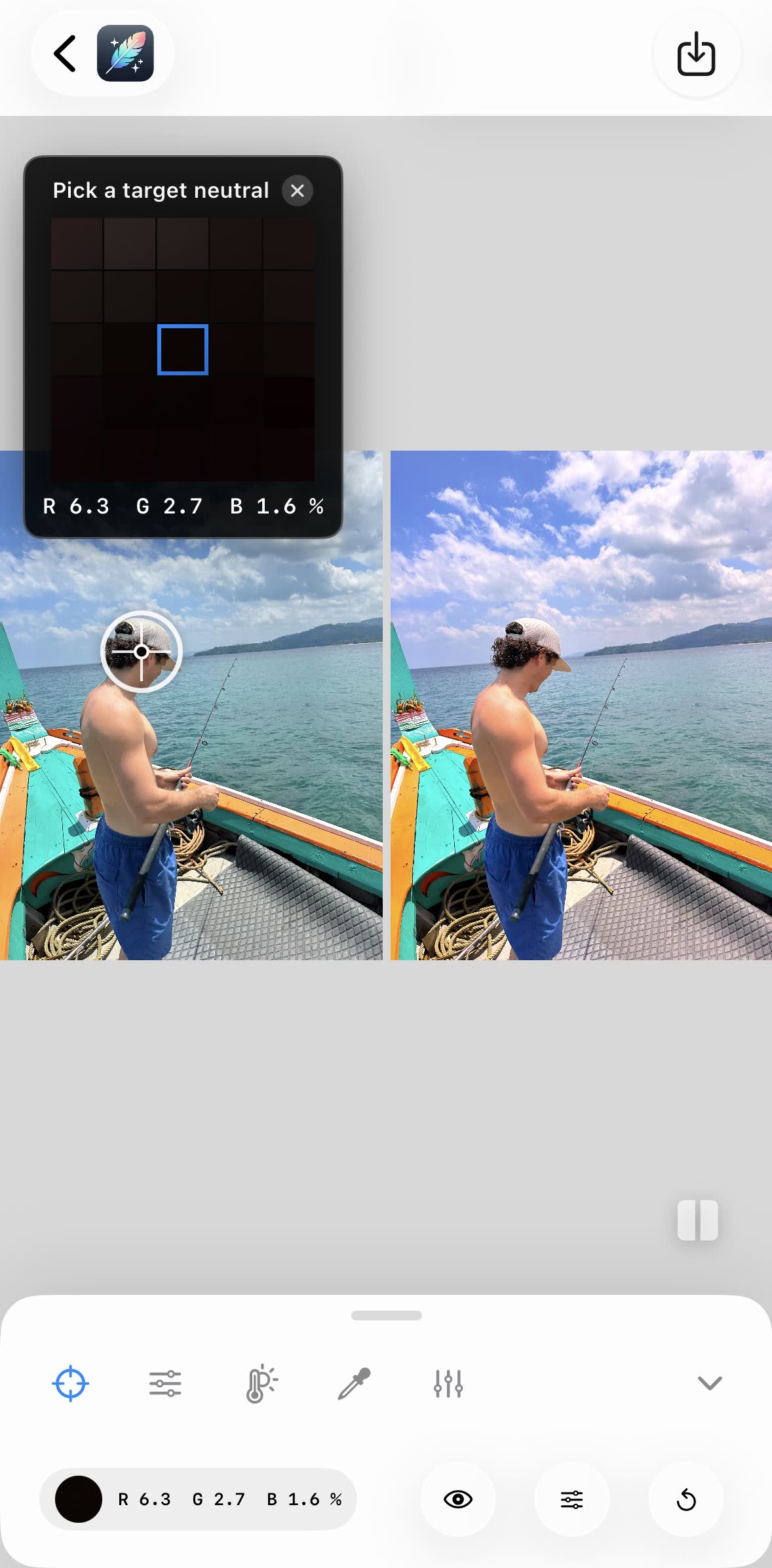
The exact method is the one pros use with a grey card: point at something that should be neutral and let the software measure the cast. In White Balancer, that is the White Balance Sampler: open the photo or video, tap a grey road, a white wall, a cloud, a sheet of paper — anything neutral — and temperature and tint are set together in one step. A before/after slider shows the difference; the export is full-resolution with no watermark. Everything runs on the iPhone, no account, no AI, free.
If you want to steer the result rather than neutralise it, the app also has 13 presets (Sunset Glow, Under The Sea, Autumn Forest, Blue Sky…) and manual temperature (2,000–12,000K), tint, brightness, contrast and saturation controls.
White balance for common iPhone situations
| Scene | What auto usually does | What to sample / set |
|---|---|---|
| Sunset, golden hour | Cools it — the glow goes beige | Keep the warmth: sample a cloud away from the sun, or use a Sunset preset |
| Indoors under bulbs | Leaves a yellow cast | Sample a white wall, plate or paper |
| Open shade, snow | Leaves a blue cast | Sample the snow or a grey road; set ~7,000K in a camera app |
| Underwater, pool | Everything is blue-green | Sample sand or a white towel; set very warm |
| Mixed window + lamp | Splits the difference, both wrong | Pick the light on the subject’s face and sample there |
| Video walking indoors to outdoors | Shifts mid-clip | Lock AE/AF before recording, correct afterwards |
Frequently asked questions
Can you fix white balance on an iPhone?
Yes. You cannot set it in the built-in Camera app, but you can correct it after the shot: in Apple Photos with the Warmth and Tint sliders, or in one tap by sampling a neutral point with White Balancer, which works on photos and videos, is free and uses no AI.
What does white balance do on an iPhone?
White balance tells the camera what color the light is so that white objects come out white. The iPhone sets it automatically for every shot by analysing the scene. When it guesses right, colors look natural; when it guesses wrong, the whole photo gets a blue, yellow, green or magenta cast.
How do I change white balance on my iPhone?
The Camera app has no white balance control. You can influence it with Photographic Styles (warmer or cooler tone), lock exposure and focus with a long press (which also holds the current white balance), or use a third-party camera app such as Halide, ProCamera or Blackmagic Camera that exposes a Kelvin setting. To change it after the shot, use Warmth/Tint in Photos or a sampler like White Balancer.
Is it good to lock white balance on iPhone?
For video, yes: locking stops the color shifting mid-clip when someone walks past or the framing changes. Long-press the screen until AE/AF LOCK appears; the current white balance holds until you tap again. For photos it matters less, because a wrong lock is as easy to fix afterwards as a wrong guess.
What is white balance on an iPhone set to by default?
Automatic. The iPhone measures the scene for every photo and video and picks a color temperature and tint itself; there is no numeric value shown and no way to choose one in the Camera app.
How do I fix white balance on an iPhone video?
Apple Photos can adjust Warmth and Tint on video by eye. For an exact correction, sample a neutral point in the clip with White Balancer: the correction applies to every frame with a live preview, and the video exports at full resolution with no watermark.